System Appearance
Modern web applications increasingly rely on system-level color schemes to deliver professional user experiences. Emuluxe’s Appearance Sync Engine allows you to audit and verify how your site responds to OS-level transitions between Light and Dark modes.
The Appearance Sync Engine
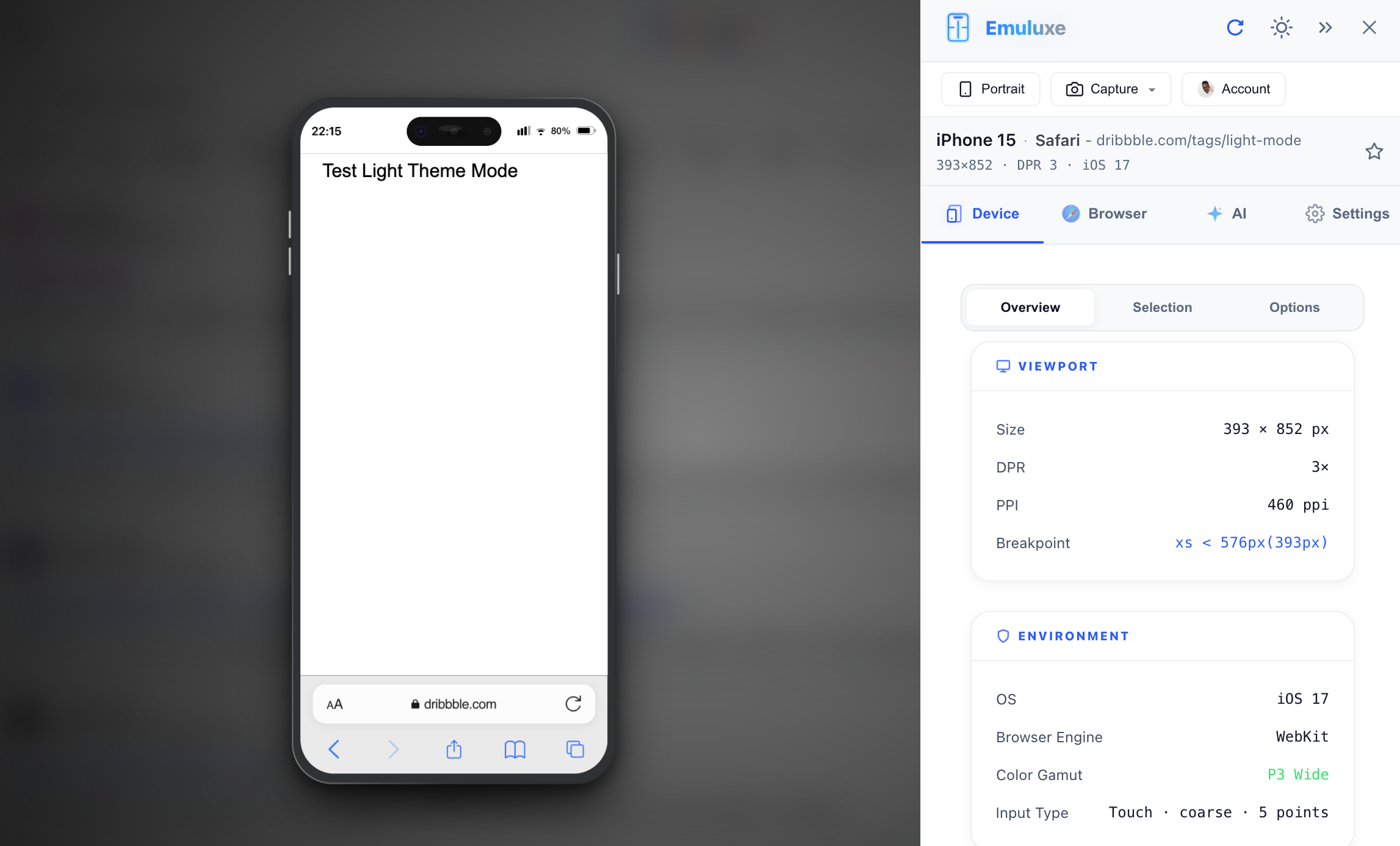
Light Mode
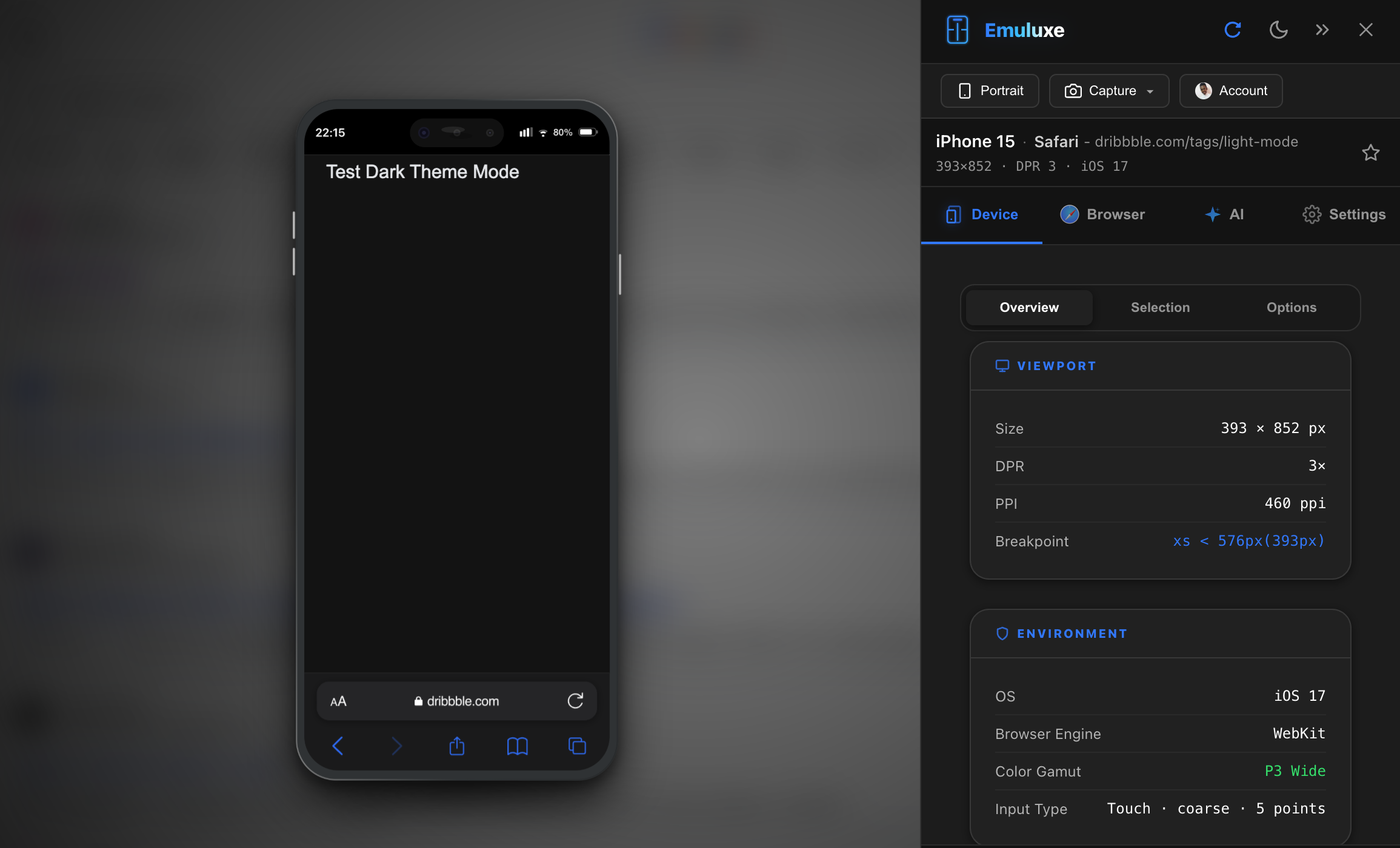
Dark Mode
When you toggle the appearance within the Emuluxe Foundry, the platform performs a synchronized update across multiple rendering targets:
1. Media Query Injection
Emuluxe forces the evaluation of the (prefers-color-scheme: dark) and (prefers-color-scheme: light) media queries. This ensures that:
- CSS Variables: Correct themed color tokens are applied instantly.
- Resource Selection: Browsers correctly select dark-mode optimized assets (e.g.,
<picture>tags with media attributes).
2. Browser UI Emulation
For a truly high-fidelity experience, Emuluxe updates the Themed Bezels. On many Pro devices, the hardware frame itself subtley adjusts its gloss and shadow profiles to match the screen's appearance, preventing visual "clash" during audits.
3. JavaScript state synchronization
Emuluxe ensures that any JavaScript listeners using window.matchMedia capture the change event. This is critical for testing:
- Dynamic Canvas Contexts: Re-rendering charts or graphs when the theme changes.
- Third-party Widgets: Ensuring embedded maps or social feeds receive the theme change signal.
Status Bar Emulation
Beyond the viewport, Emuluxe synchronizes the target device's Status Bar Style. This is essential for auditing how your application's header or splash screen interacts with system-level icons like the clock, cellular signal, and battery.
| Style | Effect |
|---|---|
| Default | Automatically selects light or dark icons based on the active theme. |
| Light | Forces the status bar icons to be white (best for dark headers). |
| Dark | Forces the status bar icons to be black (best for light headers). |
You can also specify a custom Status Bar Color to verify if your application's theme-color meta tag is correctly adopted by the host OS UI.
Automated Scheduling
In the Advanced Display Settings, you can simulate time-based transitions:
- Sunset to Sunrise: Automatically cycles the theme to test "Auto Day/Night" logic.
- Hard Override: Lock the simulator to a specific theme regardless of your host OS settings.
Why testing Appearance matters
System Appearance is more than just a toggle. In the Foundry, you can audit:
- Readability: Contrast ratios in sunlight-simulated environments.
- Asset Loading: Verifying that heavy dark-mode assets aren't being downloaded by light-mode users.
- State Persistence: Ensuring your site remembers the user's manual preference if it differs from the system setting.
[!TIP] Use the Command Palette (⌘ + K) and type "Dark Mode" to toggle the environment instantly.
Next, learn how your site interacts with Touch Simulation.