Device Switch
The Device Switch module is the primary orchestration engine for the Emuluxe Foundry. It allows for near-instantaneous transitions between physical hardware profiles by hot-reloading simulation parameters without requiring a browser page refresh.
The Synchronization Engine
When a new device is selected from the Foundry, Emuluxe triggers a multi-stage synchronization process to ensure the rendering environment is pixel-perfect:
1. Unified Aspect Ratio (UAR) Scaling
Instead of simple viewport resizing, Emuluxe calculates a Unified Aspect Ratio. This ensures that the simulated screen maintains its physical proportions relative to your desktop monitor, even if the absolute pixel count differs.
2. Device Pixel Ratio (DPR) Injection
The engine dynamically updates the window.devicePixelRatio. This is critical for testing:
- Image Sharpness: Ensures
@2xand@3xassets are served correctly. - Canvas Rendering: High-DPI canvas contexts are properly scaled to avoid blurriness.
- Font Kerning: Mimics OS-level text rendering at specific pixel densities.
3. User-Agent (UA) Spoofing
Emuluxe synchronizes the navigator.userAgent and navigator.platform strings. This ensures that:
- Feature Detection: Libraries like Modernizr or specialized polyfills detect the correct OS.
- Server-Side Rendering (SSR): Any backend logic relying on UA strings for mobile-specific layouts receives the correct headers.
Configuration Profiles
Each device in the Foundry is defined by a JSON-based Hardware Blueprint:
| Parameter | Function |
|---|---|
| Logical Width/Height | Sets the viewport meta tag dimensions. |
| Physical Width/Height | Determines the raw pixel density for rendering. |
| Max Touch Points | Injects the correct hardware touch support value (e.g., 5 for iPhone). |
| System Color Profile | Mimics P3 Wide Color or sRGB depending on the hardware. |
How to Switch
You can access the Switcher through three primary interfaces:
- The Foundry Grid: A visual gallery of all available device families.
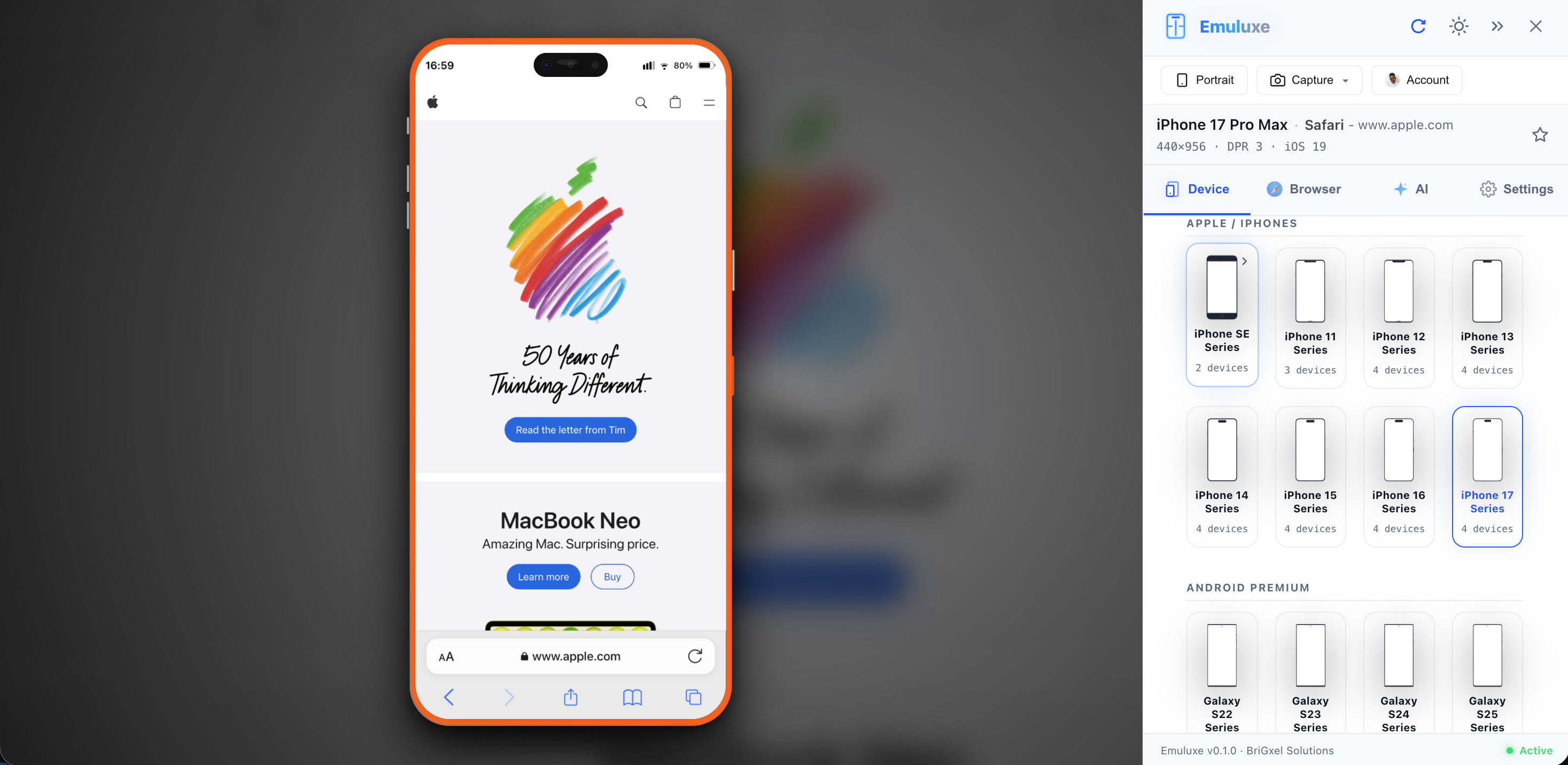
- Quick Switcher: A drop-down menu in the simulator toolbar for recent devices.
- Command Palette: Press
⌘ + Kand type the name of the device (e.g., "iPhone 16") to switch instantly.
[!TIP] Pro users can use Parallel Simulation within the platform to keep one device active while selecting a second for comparison.
Next, explore how Orientation Toggle interacts with these profiles.